Newsletter Subscribe
Enter your email address below and subscribe to our newsletter
Enter your email address below and subscribe to our newsletter
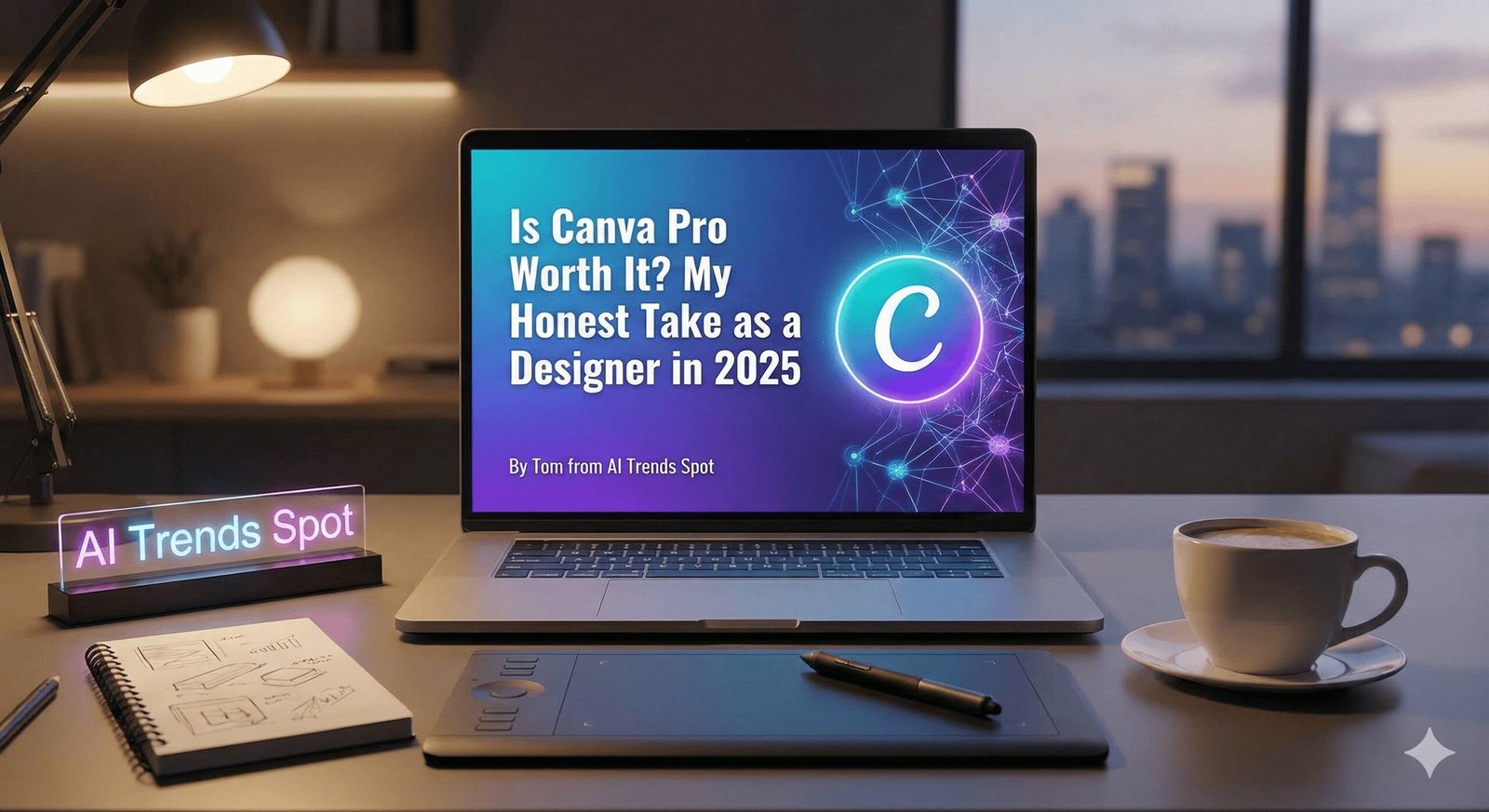
If you’ve ever bounced between Adobe, Figma, Canva, and a dozen other tools like I have, you’ve probably asked yourself at some point: Is Canva Pro really worth it paying for? I get this question constantly – from clients, from other designers, from friends starting businesses. And honestly, I’ve wondered the same thing myself.
I’ve been using design tools for years – Adobe Creative Cloud, Figma, Canva, lately Affinity, you name it. And one question I hear all the time is simple: is Canva Pro actually worth the money? Since I’m constantly jumping between client projects, content creation, and branding work, I’m always on the lookout for tools that speed up my workflow without cutting corners on quality. So this review isn’t theory or guesswork—it’s based on real, day‑to‑day use, combined with insights from other designers and case studies.
Here’s what I’ve found from using the tool daily and comparing notes with other creators: Canva Pro is absolutely worth it if you’re running a small business, creating content regularly, managing social media, or freelancing. For anyone producing 10+ designs monthly, the subscription usually pays for itself within 1-2 months thanks to time savings and access to premium assets that would otherwise cost hundreds.
But let me be real with you – if you only occasionally create simple graphics, the free version will probably do just fine. And if you’re a professional designer working on high-end, complex projects, you’ll likely still need Adobe’s tools alongside Canva. Of course, you can check out Affinity to replace Adobe Photoshop and Illustrator
Before I get into the features, here’s what Canva Pro actually costs in 2025. Pricing bumped up a bit because Canva introduced a ton of powerful AI features.
• Monthly plan: $12.99–$15 per user
• Annual plan: $119.99–$120 per year (about 23% cheaper)
Compared to Adobe Creative Cloud (which costs several times more) or combining stock photo subscriptions, design tools, and scheduling platforms, Canva Pro’s pricing holds up surprisingly well.
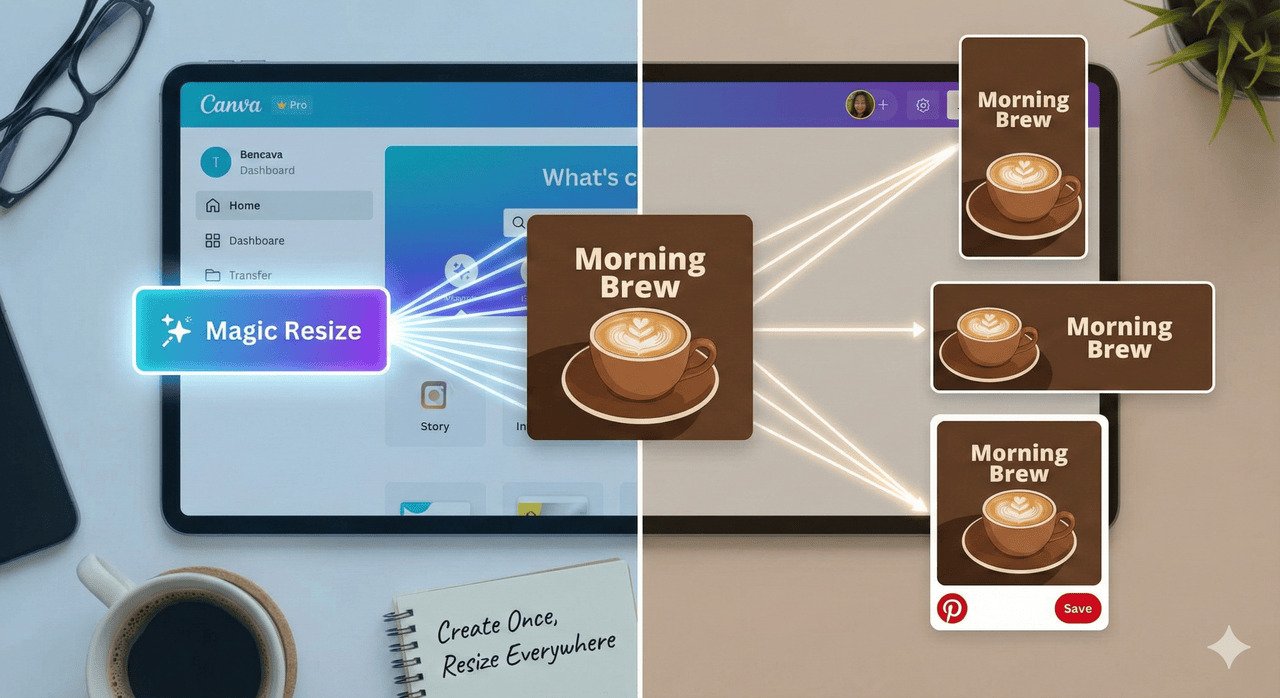
Out of all Canva Pro’s premium features, this is easily one of the biggest time‑savers in my workflow. Instead of manually recreating your Instagram post for Facebook, LinkedIn, Pinterest, and TikTok, Magic Resize reformats your design for every platform with one click.
If you’re creating content for multiple platforms daily, this saves literal hours every week.
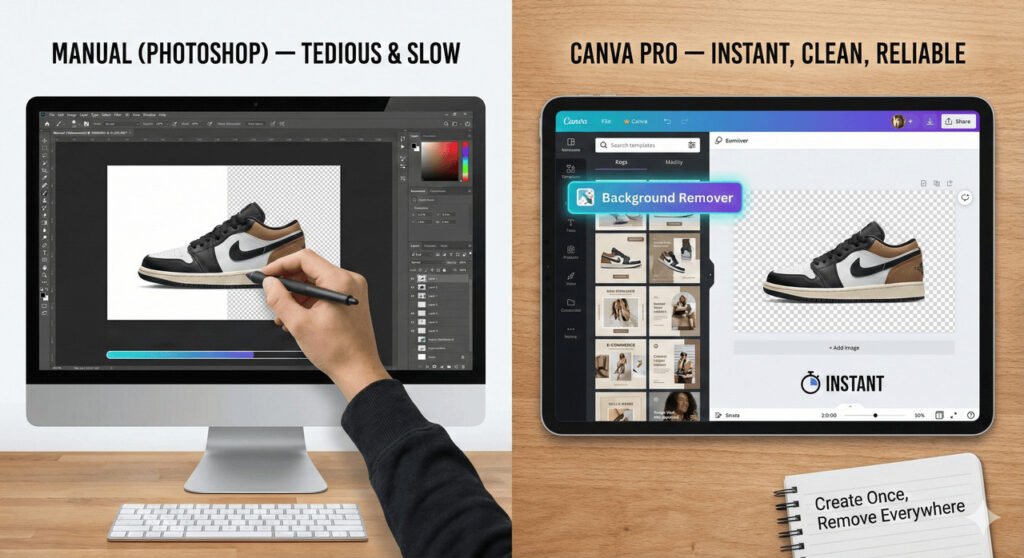
I’ve removed more backgrounds in Photoshop than I care to admit—and the amount of time that eats is ridiculous. Canva Pro’s background remover is instant, clean, and saves a lot of time. For e-commerce or social content, this feature alone is gold.
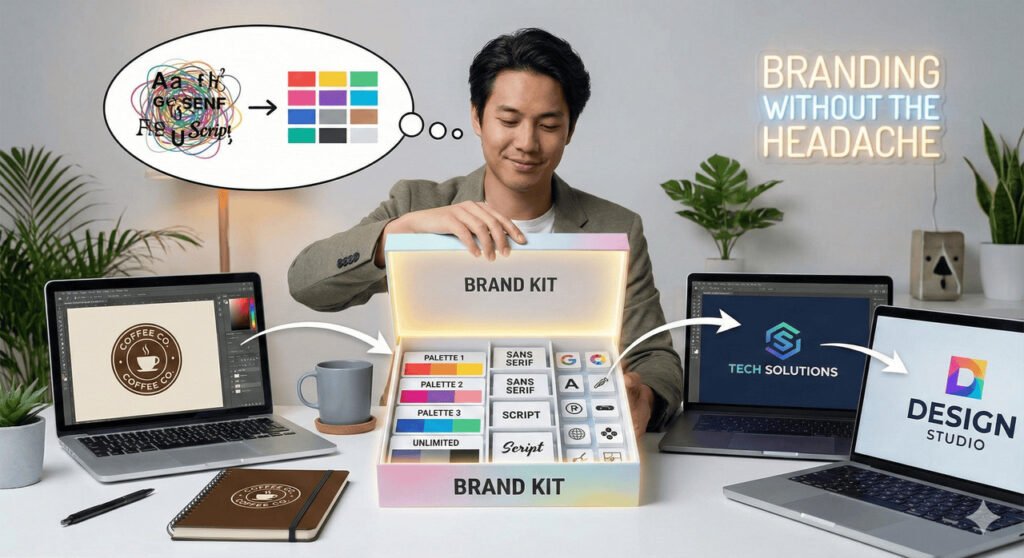
The Brand Kit stores your brand colors, fonts, logos, and graphic elements so every design stays consistent. Unlimited palettes, unlimited colors—perfect for freelancers and business owners juggling multiple brands.
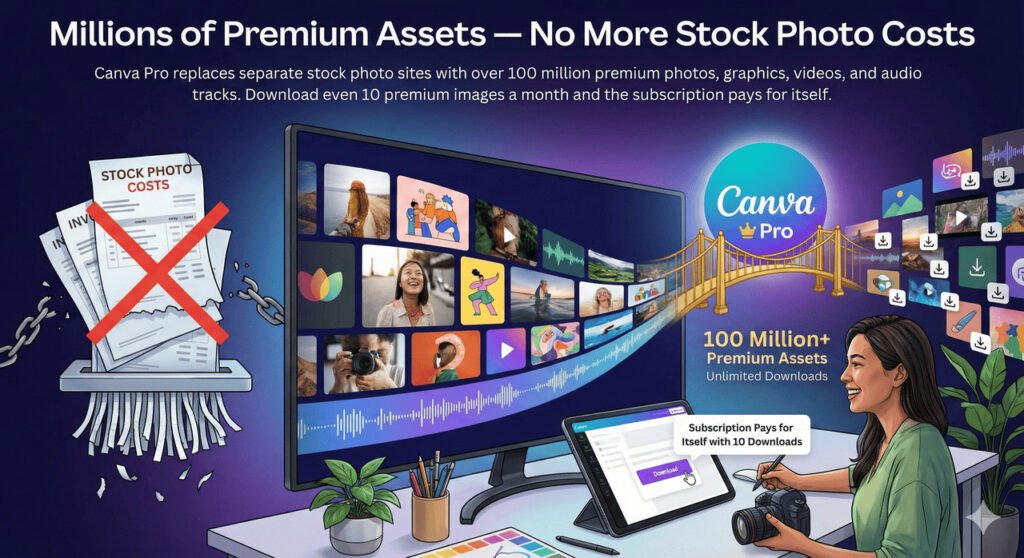
Canva Pro replaces separate stock photo sites with over 100 million premium photos, graphics, videos, and audio tracks. Download even 10 premium images a month and the subscription pays for itself.
Magic Studio is Canva’s AI playground with tools for generating images, extending photos, rewriting copy, designing layouts, editing objects, and more. Not every AI feature is perfect, but the time savings are huge.
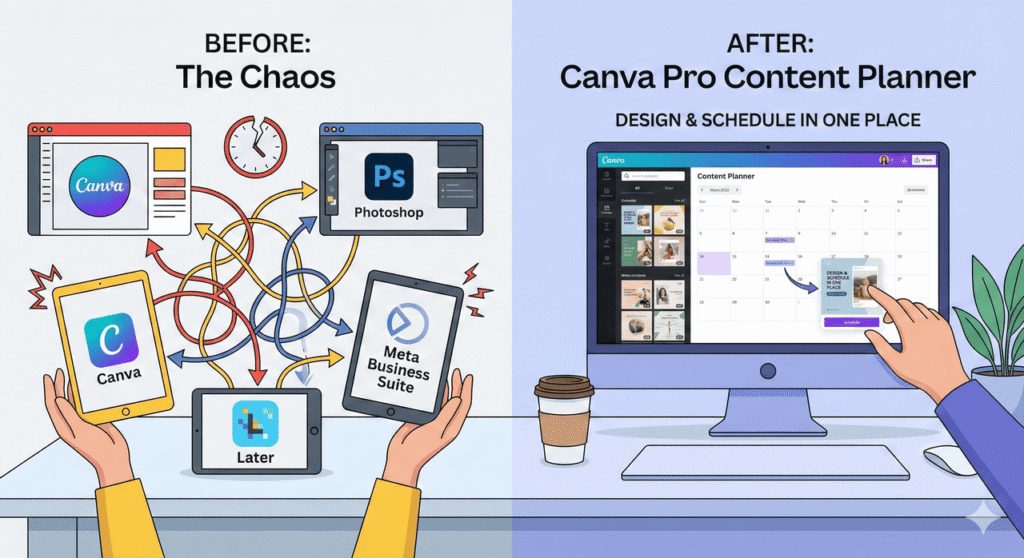
You can design and schedule content in one place. No more bouncing between Canva → Photoshop → Later → Meta Business Suite.
100GB of storage means you won’t run out of space for brand assets, videos, or client files anytime soon.
Time Savings Per Task:
When you add all of that together, the subscription starts feeling less like an expense and more like a tool that’s giving you your time back.
If Canva Pro still feels like a maybe, here are other tools that might fit your workflow better:
Adobe Express – Great if you’re already in Adobe’s ecosystem. The templates and integrations are strong, but still not as fast as Canva for everyday content.
Snappa – Super simple, great for quick social graphics. Very beginner‑friendly.
Visme – Excellent for slides, infographics, and data‑heavy visuals.
Affinity Suite – A powerhouse set of professional tools with a one‑time cost instead of a subscription. Perfect if you want Adobe‑level control without monthly fees.
Figma – The go‑to for UI/UX design and collaborative workflows.
Photopea – A surprisingly solid free Photoshop alternative in your browser.
VistaCreate – Canva‑style tools with slightly different asset libraries and layouts.
Here’s the simplified version of what upgrading unlocks:
If you publish content even somewhat consistently, the jump to Pro is something you feel almost immediately in your workflow.
If you create content more than a couple of times a week – or run any kind of small business – Canva Pro becomes one of those tools you wonder how you ever worked without. The workflow speed, access to premium assets, and AI tools easily justify the cost.
If you only make a few simple graphics per month, stick with the free version.
If you’re a professional designer who needs pixel‑level precision and print‑ready vector files, Canva won’t replace Adobe – but it can still be a powerful companion for everyday content.
Try the 30‑day free trial and actually use the tools on real projects. Test Magic Resize, the background remover, the AI features – everything. See how much time you save in one week. It’s usually pretty eye‑opening.
Most people I’ve talked to (and worked with) make their decision within the first week.
That’s my honest take.
Yes—but in a very specific way. It complements Adobe, but it won’t replace it. I use Canva for fast content creation and Adobe for precision-heavy client work.
Absolutely. You can even create brand kits, reusable templates, and shared folders for each client.
Yep. Monthly plans cancel instantly, yearly plans refund depending on when you cancel.
Surprisingly, yes. Not perfect, not Photoshop-level, but great for speeding up everyday tasks.
Canva Pro really shines when you care about speed, simplicity, and being able to crank out a lot of content without burning out. If you’re working with social media, branding, or client deliverables that need to look polished fast, it’s one of the most cost‑effective tools you can use.
Here’s the group of people who benefit so much that Canva Pro becomes a no‑brainer:
If you don’t have a full‑time designer, Canva Pro gives you professional‑looking assets without the learning curve of Adobe. Fast, clean, consistent.
Thumbnails, reels, story templates, banners, blog graphics—Canva was practically built for you.
Magic Resize alone will save your sanity.
Brand Kits, shared folders, custom templates—these features speed up client work dramatically.
Background remover + product mockups + ad templates = chef’s kiss.
If Adobe feels overwhelming, Canva gives you about 80% of what you need with maybe 5% of the learning curve.
Just to be completely transparent:
If you work with vectors, CMYK, Pantone, or massive print formats—you’ll still rely on Adobe.
No reason to pay for a subscription.
You’ll need Illustrator, Figma, or Affinity for that.